user manual BHOON KHARN
One system for people building homes — materials market · project and money control · construction documents · calculators · AI assistant
Edition of August 22, 2026 · read only your role in "Level 1" to get started · details of every tool are in "Level 2"
Level 1 — get started in 5 minutes for your role
Read only the boxes that apply to you — each box is the shortest path from zero to your first completed task
Homeowner — building or extending a house
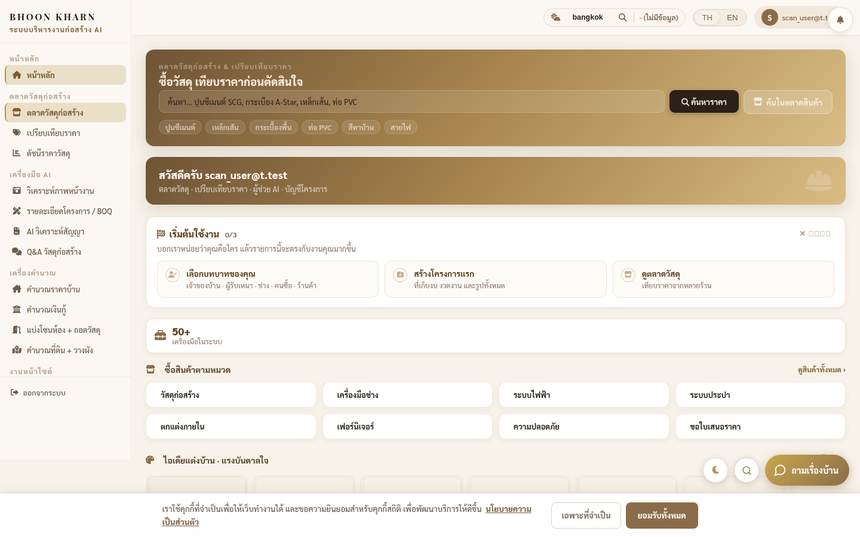
- Go to /login Sign up with email, or one tap of the Google button
- You'll be taken to /dashboard — tap "Start by creating a project", name your house and enter the contract value (if you already have a contractor)
- On the /accounting page, add payment milestones per the contract ("Milestones" menu) — this is the core: every baht flows through milestones
- Invite your contractor to the project ("Team" menu → add member → enter their email, choose the "Contractor" role) — they see only their own milestones, not your overall finances
- Record your first expense: "Expenses" menu → tap scan receipt, photograph the receipt and AI fills it in; check it, then save
Contractor
- Accept the project invitation from the homeowner (log in with the same email you were invited with) — the project appears in /dashboard automatically
- Open /accounting → "My work" shows the milestones you're responsible for and their values
- Finished a milestone → go to "Milestones" → tap submit and attach photo evidence (photos are locked and can't be deleted or edited — both sides have the same photo set for reference)
- Create documents without a project: quotation /quote · draft contract /make-contract then send the client a link to view
- Want more work? Go to the market → the job posts/bids tab, and quote on jobs homeowners have posted
Site tradesperson — mainly on mobile
- Open /site-upload on your phone (save the link to your home screen and use it like an app)
- Choose the project + milestone → take/choose photos → tap send
- Lost signal? No problem: photos are always saved on your device first and sent automatically once you're back online. The bar at the top always shows how many photos are waiting
- Check in to work: scan the QR code the site lead posted at the site → enter your phone number → the system records your in/out times (used to calculate wages automatically)

Material buyers
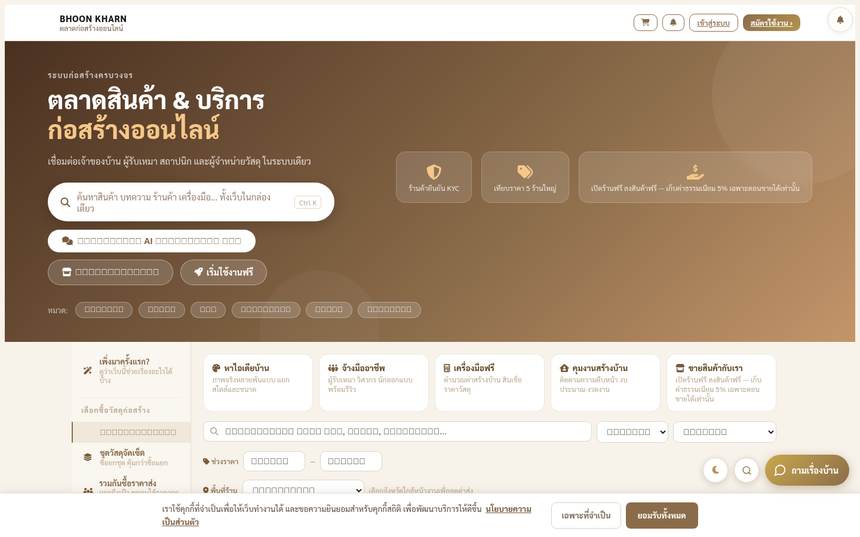
- Come straight to /marketplace no sign-up needed — search for what you need (typos in tone marks still work)
- Filter by category, province and price range — options with no items fade out, so no guessing
- Check prices before deciding: reference prices /price · compare 5 major stores /price-compare
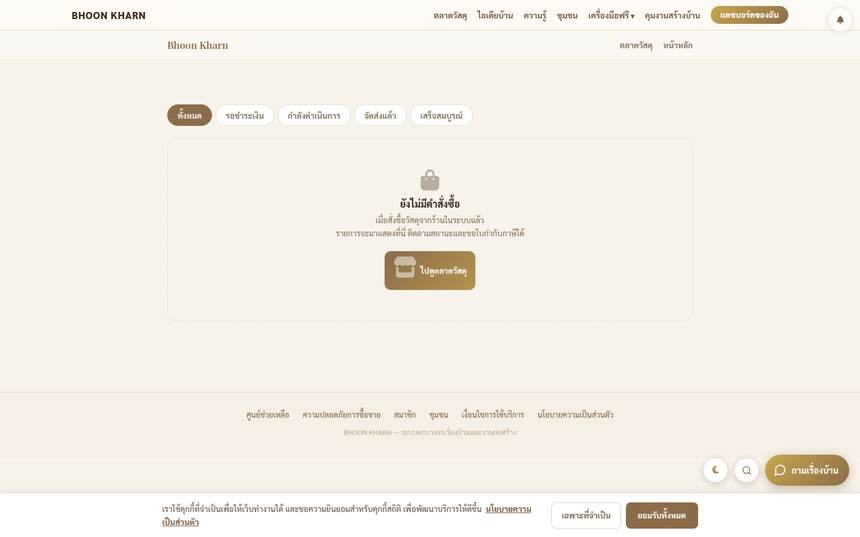
- Add to cart → tap order (you'll need to log in now) → enter address and phone → follow the payment steps on screen
- Track status at /orders — once you receive your items, don't forget to leave a star rating (reviews from verified buyers get a special badge)
Material stores — open a store on the platform
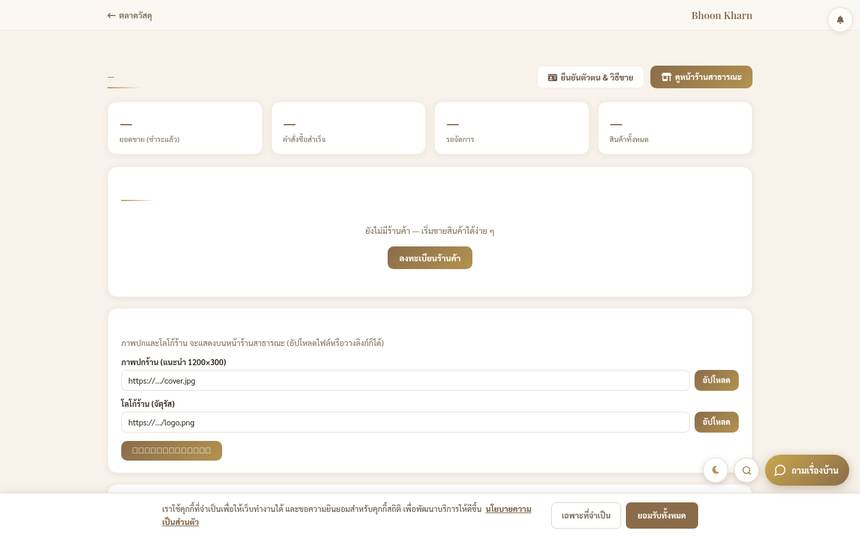
- Log in → go to the market → "Register a store" and enter your store name and contact details
- Seller verification: upload your ID card/bank book (kept private, never public) — you can list products once it's approved
- Add products: clear photos (at least 1 front view) + name, category, price, stock, unit · you can set tiered prices (cheaper in bulk) and a minimum order
- New products go into a review queue before going on sale — see the status in your store dashboard /seller
- New order: accept → ship → enter the tracking number · see your balance and payout cycle under "My earnings"
Engineers / inspectors / designers
- Engineers taking inspection jobs: go to the market → "Hire an engineer to inspect" → "Register as an engineer", wait for admin verification, then take jobs in your area
- Designers: create your profile + portfolio at /designer-portal — customers find you from /designers
- Invited to a project as engineer/inspector: open /engineer or /inspector to see the inspection queue, NCRs and documents waiting for signature
- Repair/service tradespeople: your profile is at /technician take repair jobs from homeowners
Level 2 — detailed reference for every tool
1. Getting started: sign up, log in, menus and floating buttons
Sign up / log in (/login)
- The easiest way: the "Sign in with Google" button — one click, no password to remember
- Or enter your email + set a password, then tap sign up
Main menu (top bar on every page)
Materials market · house ideas · know-how · community · free tools (all calculators and documents) · manage your build · gold button "My dashboard / Log in"
Floating buttons, bottom right (on every page)
- Magnifier — search the whole site: products, articles, stores, tools (or press Ctrl+K on a computer)
- Ask about your home — the AI assistant answers home questions and takes you to the right page
Dashboard (/dashboard)
Your hub after logging in: choose your role for relevant shortcuts · see key figures · a "what's next" list the system ticks off when you've actually done it · all your projects and buttons to every function
Bell notifications
Top right after logging in — submitted/returned milestones, invitations, orders and things waiting for your decision pop up here. Tap an item to jump straight to that page
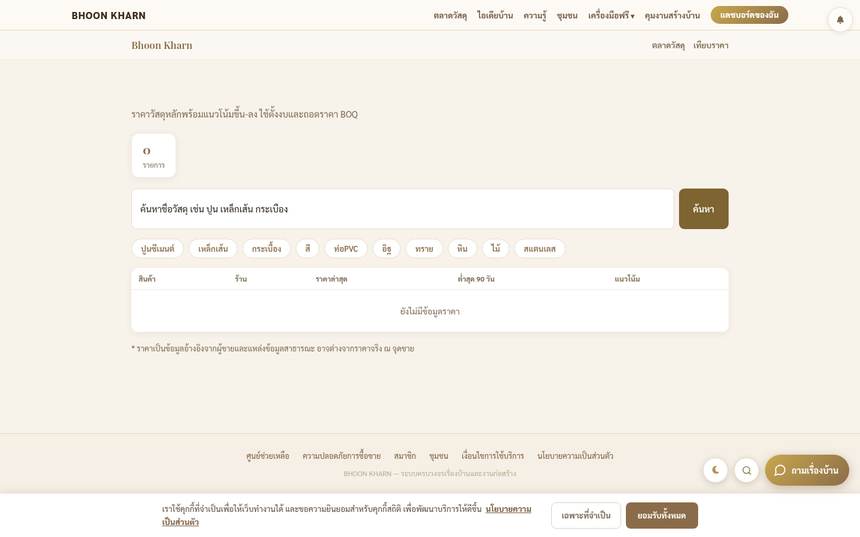
2. Materials market (/marketplace)
Search and filter
- Type an item name in the search box — suggestions appear as you type, and it understands missing tone marks and odd spacing
- Use the filters on the left: category, province, price range — the number next to each filter shows how many items remain if you choose it
- Filtered to nothing? The system suggests which filter to remove to find items — one tap
Product page
See photos, specs, price (if the store set tiered pricing, you'll see the price for each quantity), stock, reviews, Q&A and similar products · the add to cart/buy now buttons are in the box on the right (mobile: a button pinned to the bottom of the screen)
Cart and checkout
- Tap the cart icon and check the items and quantities
- Enter a discount code before paying — the system tells you immediately whether it works, and why not
- Tap order → enter name, delivery address and phone → choose/follow the payment option shown on screen
- Track status at /orders: waiting for the store → shipped (with tracking number) → received, tap confirm
Smart buying tools
| Tools | at | What it's for |
|---|---|---|
| Material reference prices | /price | See historical reference prices so you don't get overcharged |
| Compare prices at 5 major stores | /price-compare | What do big stores charge for the same item? |
| Request a quotation (RFQ) | Market → RFQ tab | Post the items you need, several stores bid against each other, compare them in one table and pick the store you like |
| Group buying | /group-buy | Combine your order with others to reach the minimum and get wholesale prices |
| Material bundles | /bundles | Items used together packaged as a set at one price |
| Material quantity calculator | Market → material calculator | Enter the area and AI calculates how many pieces you need |
| Favorites | /wishlist | Save items to view later |
Product reviews
Give 1–5 stars with text and photos — if you actually bought the item through the platform, your review gets a "Verified purchase" badge and its score is shown separately, so other buyers trust your review more
3. Managing your build (/accounting) — the biggest tool set on the site
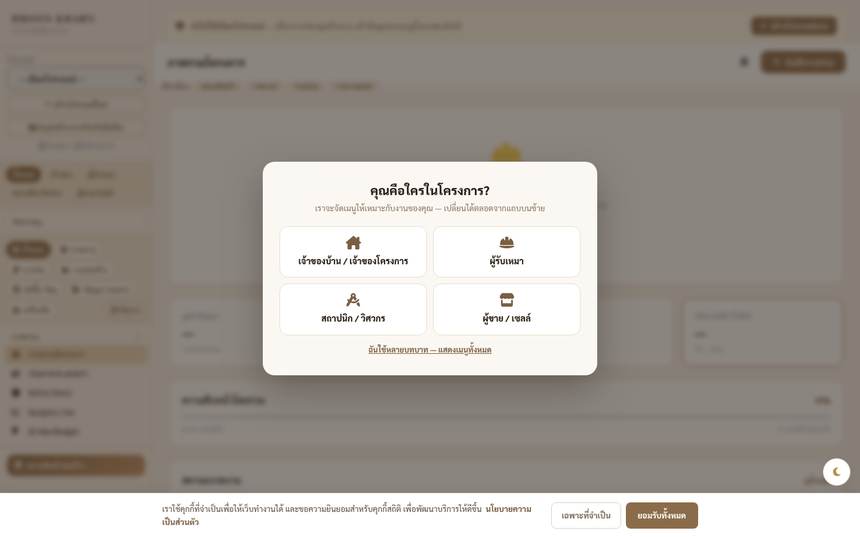
This page brings together more than 80 project tools. The first time you open it, it asks your role so the menu fits your work. The left menu has 6 sections (switch "work mode" and pin the tools you use most):
Overview section
- Project overview — all the key figures on one screen: how much you've spent, how much budget is left, which milestones are pending
- Announcements & documents — a board for posting notices/files for the whole team · Action Items — tasks waiting for each person
- Summary reports BK-R01 to BK-R10 — 10 ready-made reports (project summary · analytics · cash flow · budget vs actual · budget overrun · withholding tax · tax invoices · export · project health · cost by category), print or export
Finance section (only the homeowner can edit figures)
- Expenses — record every baht: tap add → choose a category → enter the amount, orScan receiptslet AI fill it in (always check before saving)
- Income / invoices / quotations — issue billing documents from within the project
- Milestone — create milestones per the contract with their value and due date · the contractor submits a milestone with photos · the homeowner approves or returns it with a reason · the system automatically prevents claims beyond the contract value
- Budget + overrun alerts — set a budget per category; the system warns you when you're close to exceeding it
- Retention — withhold a guarantee percentage per milestone and track its release when due
- Bank loan drawdowns + bank document package + drawdown plan — prepare the documents for your bank (GH Bank/Krungthai etc.) as a set, with a completeness check
- Cash flow · 3% withholding tax · VAT tax invoices — for jobs that need tax documents
Construction section
- S-Curve / Gantt — a timeline of the whole project; see at once where you're behind plan
- Variation orders — every change from the contract needs a VO that both sides confirm, so there are no arguments later
- Site reports — daily log + photos, AI helps summarize · Record progress — upload photos by milestone
- QR check-in + work time log + tradespeople's wages — print a QR code to post at the site; workers scan in and out and the system totals the hours and calculates wages
- Inspection · NCR · punch list · HSE — quality tools: inspection checklists, non-conformance reports, snag lists and safety/accident records
- Subcontractors · repair work orders · equipment/machinery — manage sub-teams and equipment
- Warranties · handover · completion certificates — close out the project properly
Procurement & materials section
- Cost BOQ — take off materials/labor for the whole project · BOQ Auto-Match match items to real products in the market and create a purchase order (PO) right away
- Procurement pipeline · supplier catalog · subcontractor price comparison — track items from price request to arrival on site
- Material price alerts — watch prices of things you plan to buy; we tell you when they drop
- AI material calculator / AI cost estimate — enter the job size and get quantities and a price range
Contracts & documents section
- AI contract summary — paste the contract text and AI points out risks in plain language · Contract templates — standard forms ready to use
- Contract e-signature — both sides sign online, with a record of when they signed
- Scope of work · engineer invoices · PM fees — documents for professionals
Extra tools section
- Work rooms · chat — one room per topic (general discussion · daily photos · two-sided claims/approvals · inspections); each person sees only the rooms they're assigned · official documents can't be edited after the fact and can be exported as an evidence pack · Voice notes — record voice notes and convert them to text
- AI site meetings — take meeting notes; AI summarizes decisions and open tasks
- House logbook — the house's history after handover: what was repaired when, which models were used · PM Schedule — a recurring maintenance schedule with automatic reminders
- Family sharing + family link — let your family see progress without the money figures (you choose whether the link shows the budget and whether it expires)
- Find a repair tradesperson · book a service — call a tradesperson to the house after handover
- Contractor ranking · edit history · data export — transparency and your own data backup
4. Site work: send photos, check in, daily reports
Send site photos (/site-upload)
- Open on your phone and choose the project and the milestone you're working on
- Take photos or choose from your album (several at once) → tap send
- No signal? Photos are always saved on your device first — closing the page or a flat battery won't lose them. Once you're online they're sent automatically and linked to the right milestone
QR check-in
The site lead prints a QR code from the "QR Check-in" menu and posts it at the site → workers scan and enter their phone number once → the system records in/out times automatically, ready for wage calculation in the "Tradespeople's wages" menu
Daily site report
Whoever is on site writes a short note on today's work + attaches photos — AI turns it into an easy-to-read report the homeowner can open from anywhere
5. Quick documents — no project needed
Create a BOQ quotation (/quote)
- Tap create new, enter the job name and client name
- Add items: work/material, quantity, unit, unit price — the total updates live
- Set a quotation expiry date (the client sees clearly how long the price holds)
- Tap share — you get a short link to send the client that looks good on a phone, or tap print as a document
Draft a construction contract (/make-contract)
- Choose the type of work, enter the parties, value and payment milestones
- The system drafts standard clauses for you — every line can be edited
- Share the link for the other party to read, then arrange signing (projects have e-signature for signing online)
6. The 4 calculators ("Free tools" menu)
| Tools | at | How to use it |
|---|---|---|
| House construction cost calculator | /house-calc | Enter the area, number of stories and material grade → get an approximate construction budget, broken down by category |
| Home loan calculator | /loan-calc | Enter the loan amount, interest and term → monthly payment, the full repayment schedule, and try extra payments |
| Land and title deed calculator | /land-calc | Convert rai-ngan-square wah + photograph a title deed for AI to read the area + pin the plot on a map |
| Room and zone layout | /room-zone | Drag rooms onto a plan and try out your home's proportions before talking to a designer |
7. House ideas, articles and community
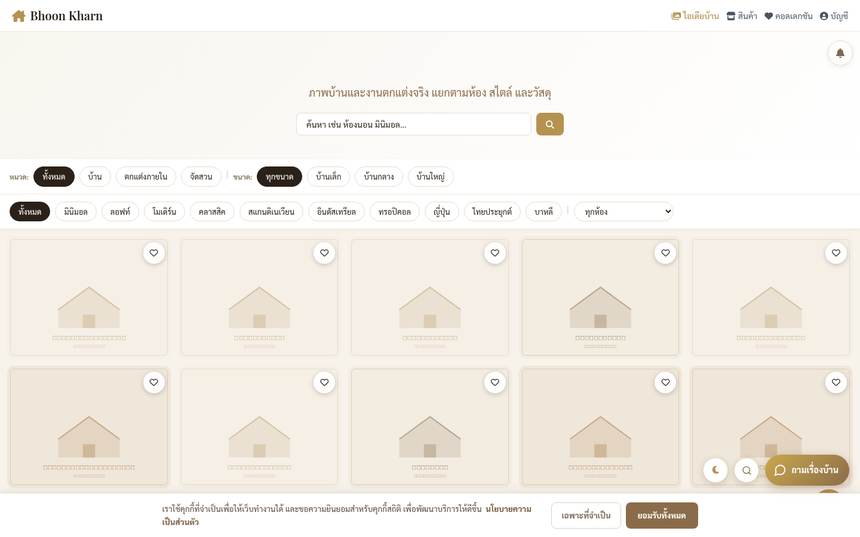
House ideas (/gallery)
A library of decor/building photos, filtered by room, style and category — save the ones you like to your board (see them all at /my-collection) the system also tags the materials visible in each photo
Know-how articles (/articles)
Easy-to-read articles about homes, added all the time, searchable by topic
Community Q&A (/forum)
- Anyone can read without logging in · to post, reply or vote you need to log in
- Tap new topic, choose a category, write your question and attach photos — the name shown is the part of your email before the @, never the full email
Materials Q&A (/qa-material)
A room for in-depth material questions, with AI giving a first answer instantly
8. Seller guide — from opening a store to getting paid
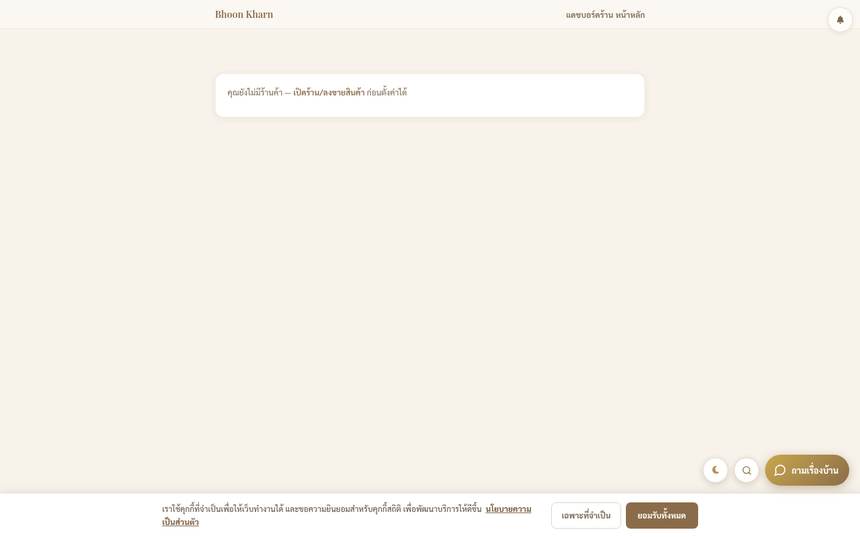
- Register a store: market → register a store → store name, contact details
- Verify identity: upload your ID card + bank book (files are stored privately, only admins can open them, and the review link expires on its own) — you can sell once your status is "Verified"
- Add product: at least 1 photo (3–5 angles recommended, good light, plain background) · a name people actually search for, e.g. "Elephant brand cement 50 kg", not "quality product" · category, price, unit, stock · you can settiered prices (e.g. one price for 1–49 bags, another for 50+) and aminimum order— prices are calculated automatically from the quantity ordered
- Awaiting review: new products go into the admin review queue before going on sale
- Receive orders: a notification pops up when an order comes in → accept → pack and ship → enter the tracking number (the customer sees it immediately)
- Respond to RFQs: open the RFQ tab to see quotation requests from large buyers and submit your store's price (other stores can't see each other's prices) — you can change your price until bidding closes
- See your money: store dashboard /seller sales summary · "My earnings" shows pending payouts and payout history
- Public storefront: customers can view your store at /shop/your-store-name — make your profile trustworthy in store settings
9. Hiring professionals
- Inspection engineers (market → hire an engineer to inspect): choose an engineer near you, see their profile/prices → book an inspection → receive an inspection report with photos in the system — ideal before paying a large milestone or before accepting the house
- Designers (/designers): see each person's real work and contact them via their profile
- Repair tradespeople (/technician or the "Find a repair tradesperson" menu in project management): describe the problem, set a date, and a tradesperson takes the job at your home
- Book a tradesperson: standard services are booked by slot — set a date and time, pay and track in the system
10. AI assistants everywhere, and usage quotas
| Which AI | at | What it does for you |
|---|---|---|
| Site photo analysis | /final | Photograph construction work and AI says what the work is, which spots to check, and the materials used with price ranges |
| Scan receipts | Project management → expenses | Photograph a receipt and AI fills in the amount/store/category — check it and tap save |
| Title deed reader | /land-calc | Photograph a title deed and AI extracts the area to continue calculating right away |
| Ask about your home | Floating button on every page | Ask anything about your home or using the site |
| AI material picker | /material-advisor | Describe your job (budget, area, style) and AI recommends suitable materials |
| Construction cost estimate / material calculator / building law | Project management + market | Starting figures and basic answers on legal points |
| Contract summary / meeting summary / delay analysis | Project management | Digests project documents and data into plain language |
11. Account, privacy and help
- My data (PDPA) — /pdpa/my-data: request a copy of all the data the system holds about you, or request account deletion
- Project trash — /trash: deleted projects are kept for 30 days and can be restored; after that they're deleted permanently
- Edit history — in project management: who changed what and when, for every item
- Help center — /help: how-tos by topic + FAQs
- Membership — /membership: see plans and extra benefits
12. FAQs
Do I have to pay? — the core tools are free: project management, documents, calculators, gallery, community · heavy AI tasks are free 5 times a day · costs only arise when you actually buy in the market or hire a service
Who can see my financial data? — only you and the people you appoint. Contractors see only the value of their own milestones; relatives you share with see only progress (unless you let them see the budget)
Can photos a tradesperson submitted for a milestone be deleted? — No. Milestone evidence photos are sealed the moment they're submitted, so both sides have the same set to refer to if they disagree (withdrawing a milestone requires a reason and is logged)
Problem with an order — what do I do? — open the order at /orders → tap report a problem/open a dispute and attach photo evidence; an admin will help mediate based on both sides' evidence
Can I use it on my phone? — Yes, every page, and you can add it to your home screen to use like an app (your browser will offer "Add to Home screen"). The site photo upload page works even with no signal
Forgot your password? — if you signed in with Google before, just tap the Google button · email accounts: enter your email and tap "Forgot password" under the password box; we'll email you a reset link (if you can't find it, check your spam folder)
Want to close your account and delete your data? — submit a request at /pdpa/my-data The system records the request and handles it under the Personal Data Protection Act
This guide was prepared from the live system as of August 22, 2026 — the actual screens may differ slightly from the images as the system is updated